Views
A View is a saved dimension filter. Rather than reconstructing the same set of dimension values every time you want to inspect a particular audience, you save them once as a named View and reuse it to slice your releases by that segment.
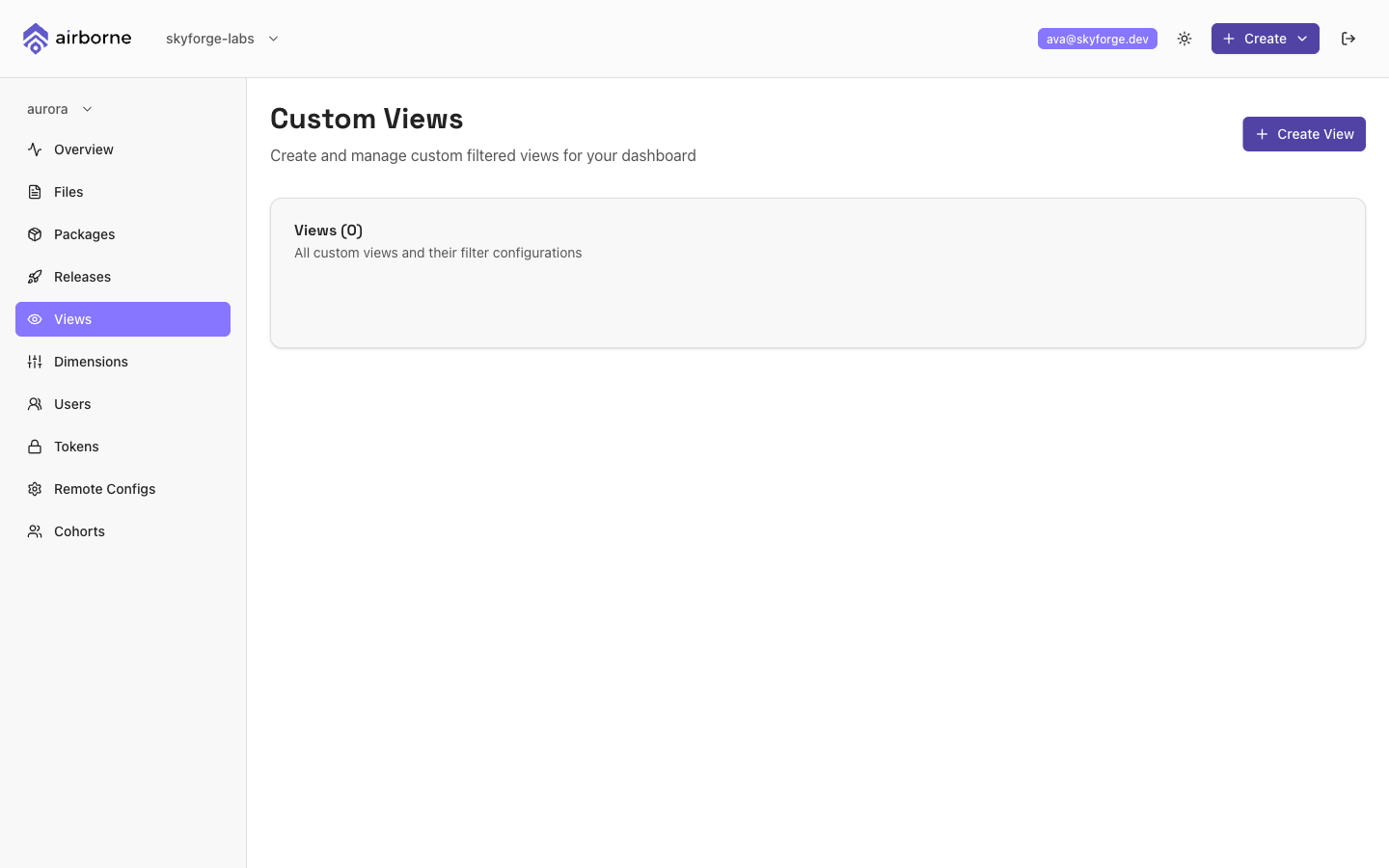
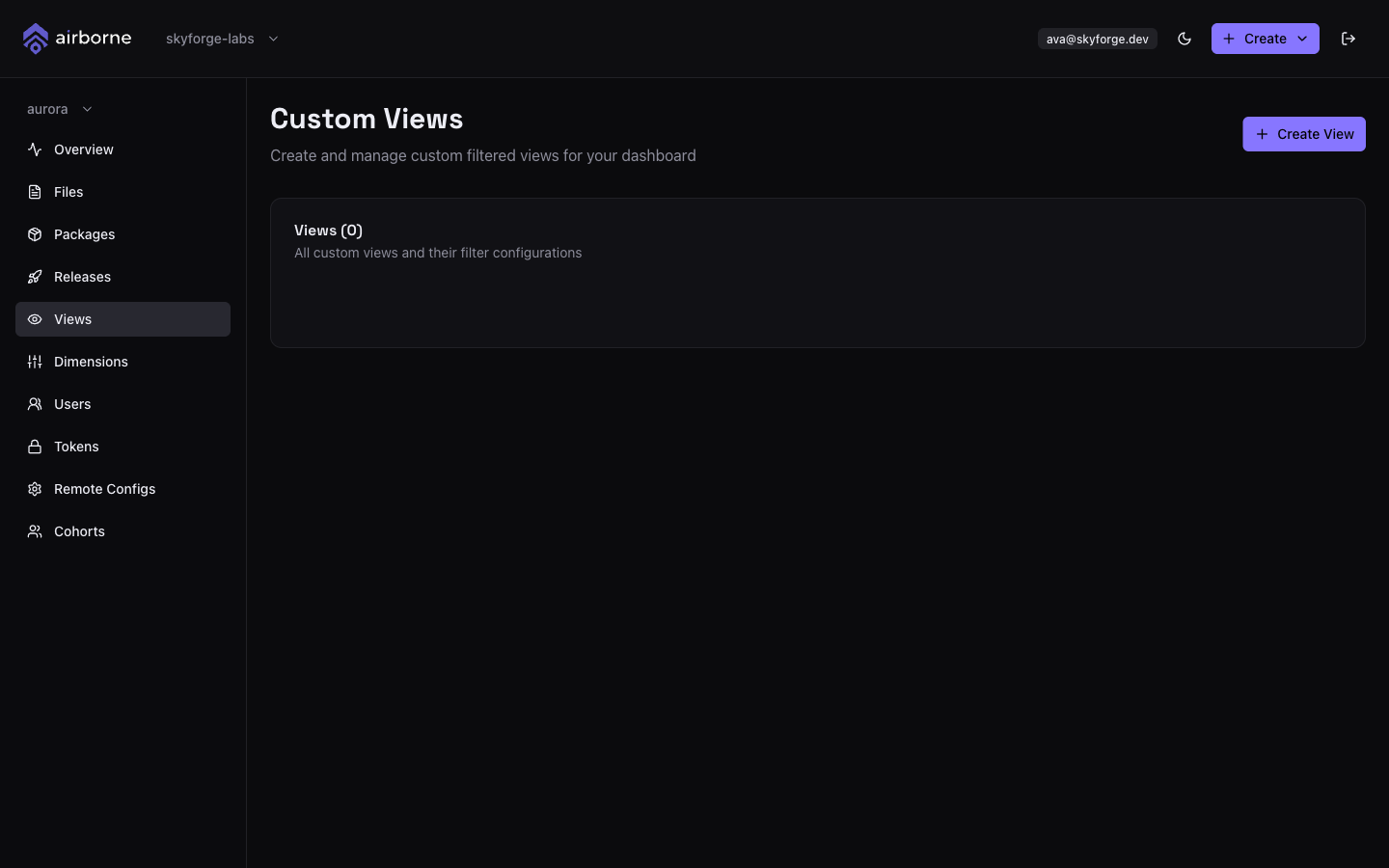
The Custom Views page
The page is titled Custom Views and lists every saved view with the dimension filters it captures shown as key: value badges. Click a view to expand it and see the release information for that filter. Each view has Edit and Delete actions.
Creating a view
Choose Create View. In the Create a new view dialog:
- Enter a View Name. It is normalised to snake_case (lowercase, spaces become underscores).
- Add one or more Dimensions. Each row pairs a Dimension (chosen from your defined dimensions) with a Value. Use + Add Dimension to add more rows and the remove control to drop one. At least one dimension is required.
Choose Create View to save it.
Using views
Once saved, a view captures "show me the releases that match these dimension values." Expanding a view surfaces the release information for that slice, so you can quickly answer questions like "what's currently shipping to this segment?" without rebuilding the filter each time.
Create a view for each audience you care about — for example a region, a platform, or a beta cohort — so anyone on the team can check that segment's releases at a glance.