Dashboard Overview
The Airborne dashboard is the web console for managing over-the-air updates. From here you register the files your app downloads, bundle them into packages, ship them as targeted releases, and watch each rollout's traffic, downloads, and errors in real time — all without an app store review.
The Organisation and Application model
Everything in Airborne lives inside two levels of hierarchy:
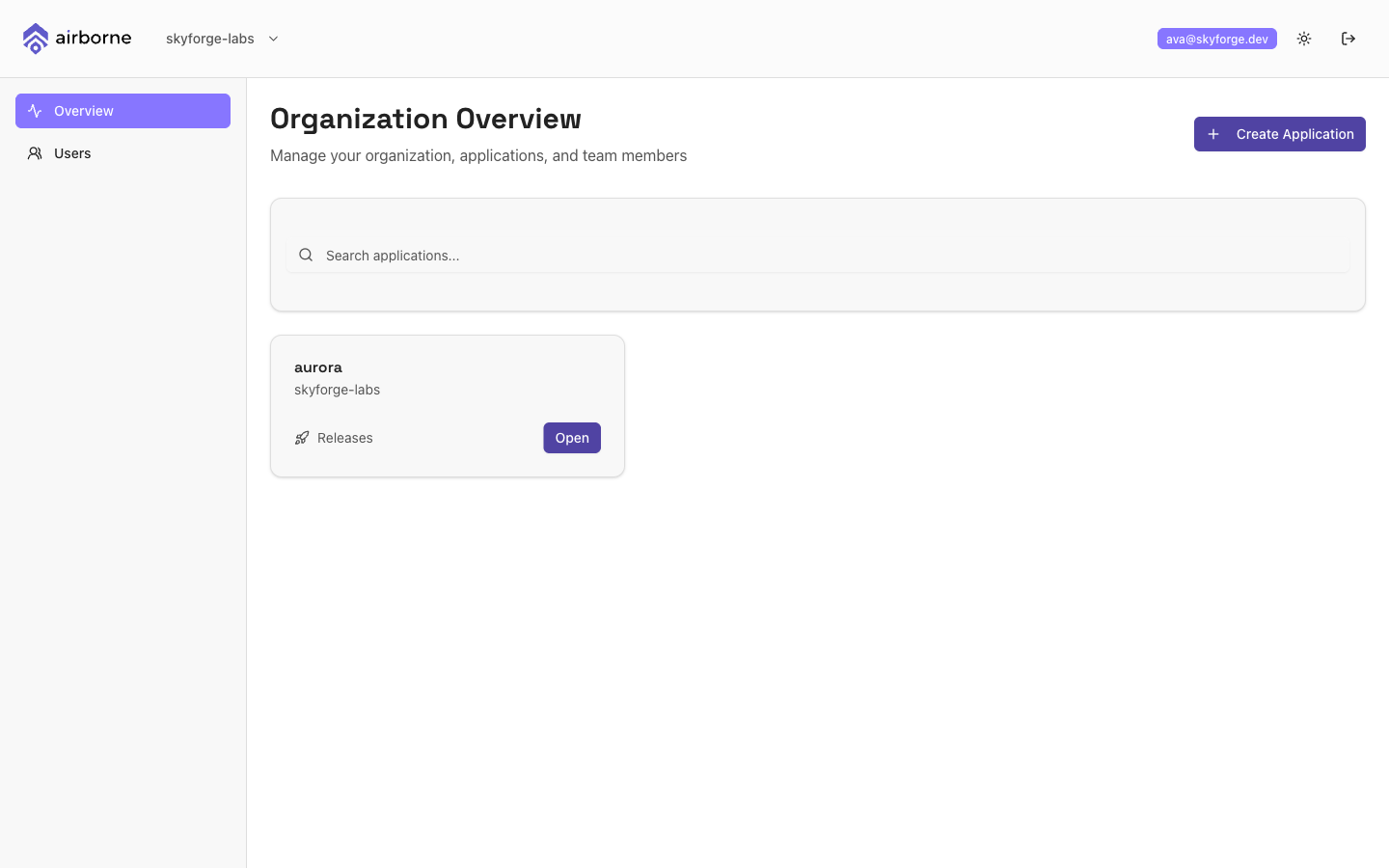
- An Organisation is the top-level workspace for a team or company. It owns applications and a roster of users.
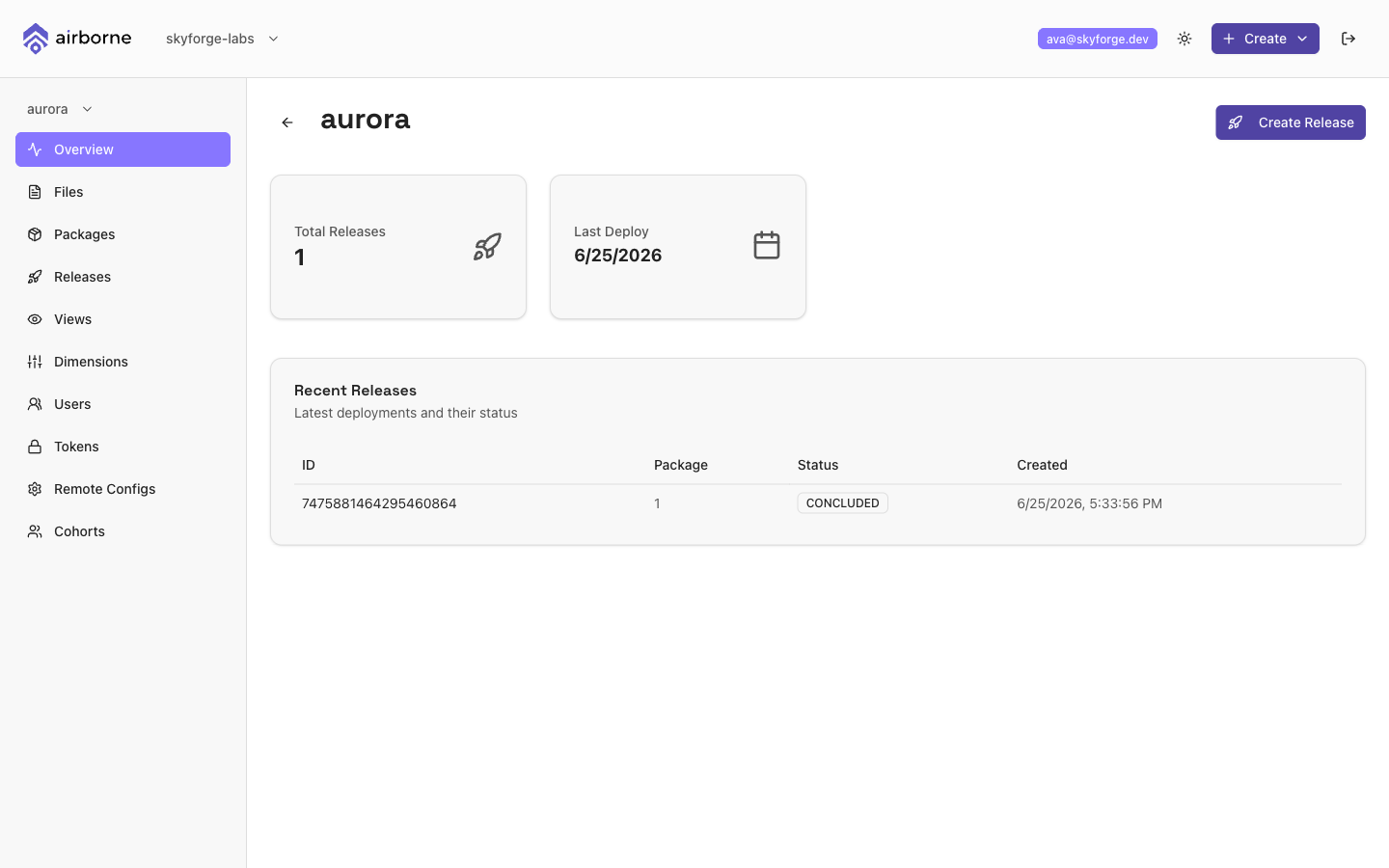
- An Application lives inside an organisation and is the unit you actually ship to — for example one mobile app per platform. Files, packages, releases, dimensions, cohorts, remote configs, views, and tokens are all scoped to a single application.
You always operate "inside" one organisation and (usually) one application at a time. The header shows your current organisation and application and lets you switch between them.
Navigating the dashboard
The header (across the top) stays visible everywhere and contains:
- The organisation switcher on the left — click it to jump between organisations or to
+ Create Organisation. - The application switcher in the left sidebar — switch between apps in the current organisation.
- A global
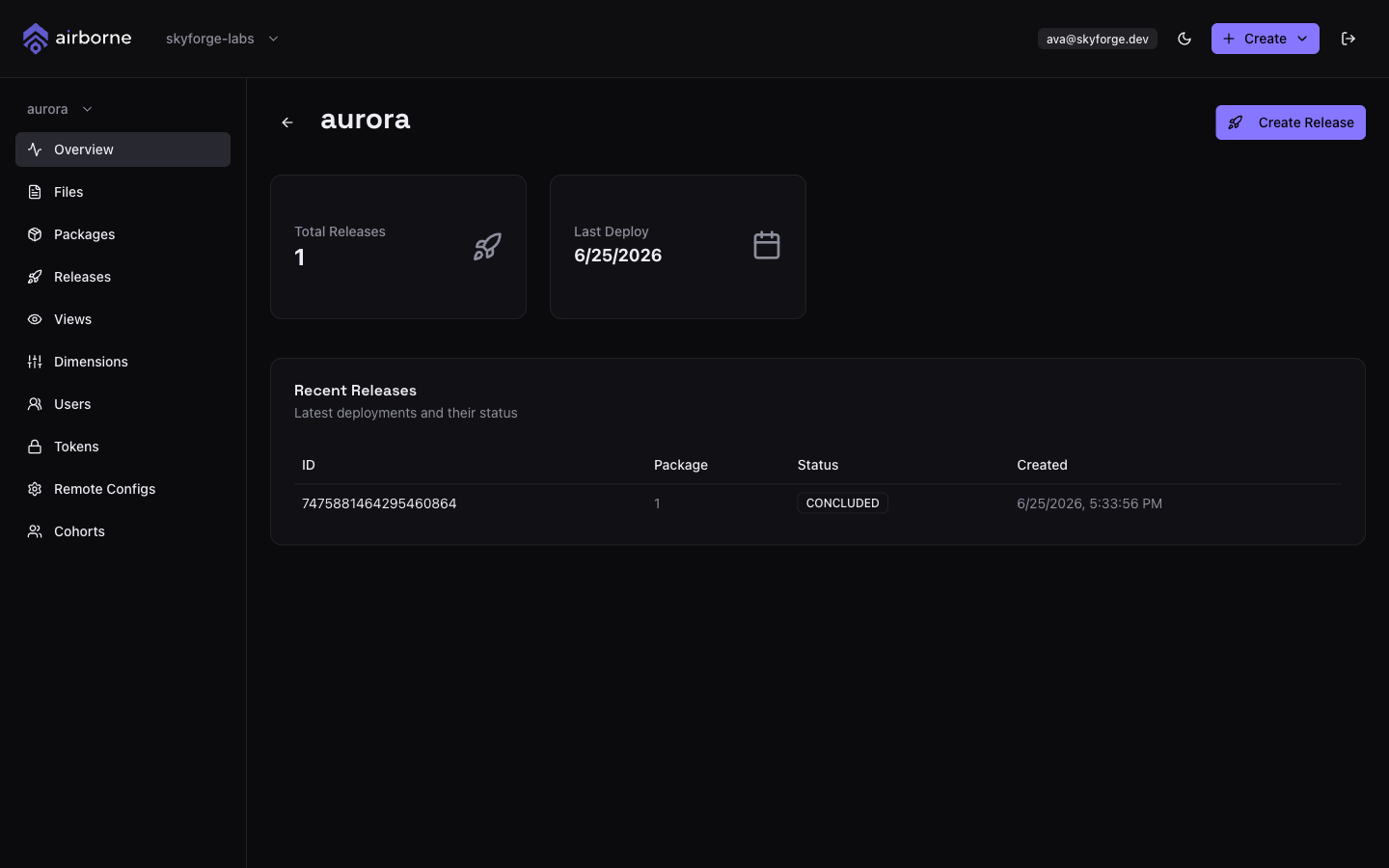
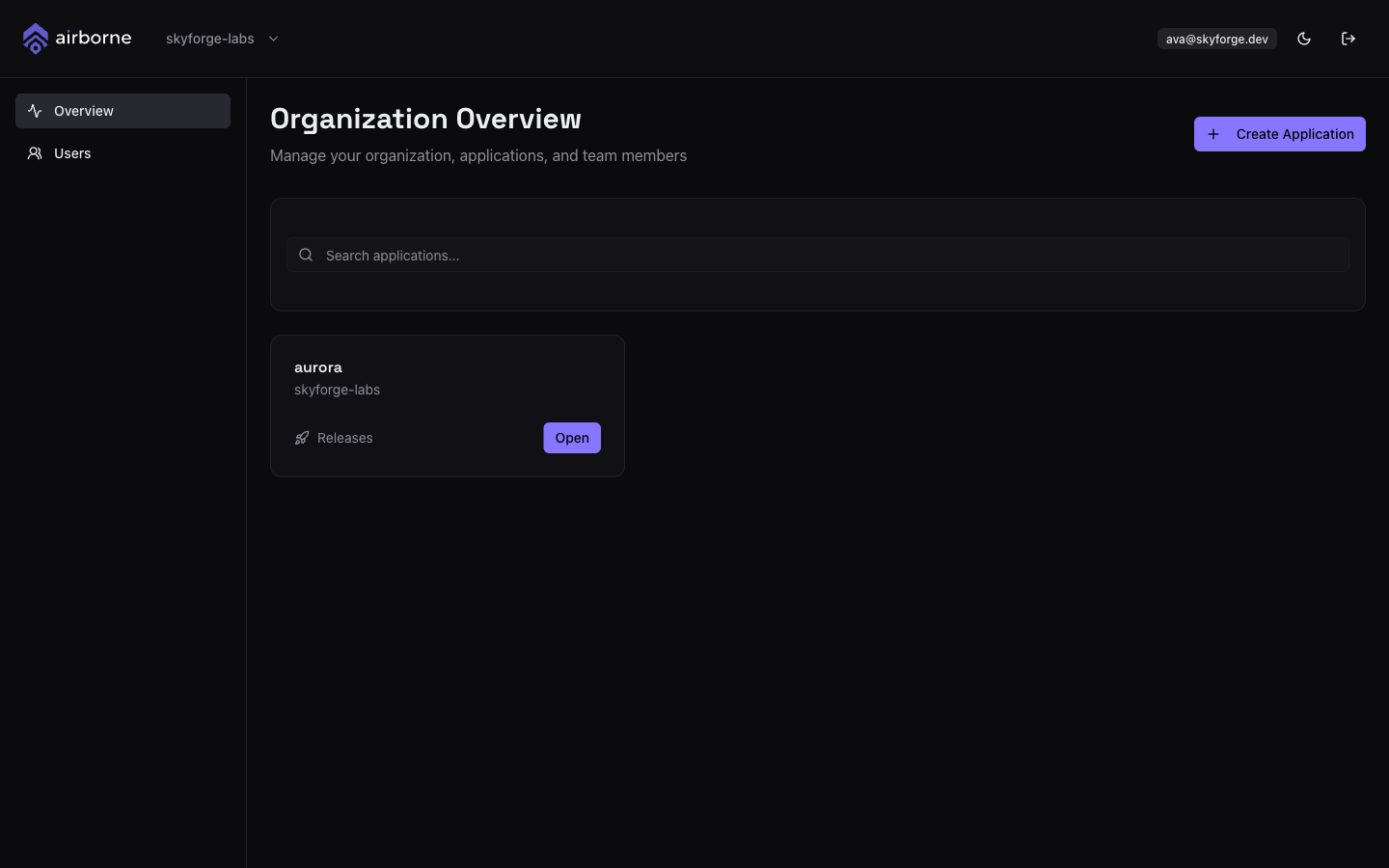
+ Createmenu — a shortcut toCreate File,Create Package, orNew Releasefor the current app. - The theme toggle (light/dark) and a sign-out menu.
The left sidebar changes depending on where you are:
- At the organisation level it shows
OverviewandUsers. - At the application level it shows, in order:
Overview,Files,Packages,Releases,Views,Dimensions,Users,Tokens,Remote Configs, andCohorts.
Feature tour
Use these pages to go deeper on each area of the dashboard:
| Page | What it covers |
|---|---|
| Authentication & onboarding | Signing in, registering, OIDC, and creating your first organisation. |
| Organisations | Creating and switching organisations and the org overview. |
| Applications | Creating an application and reading the app overview. |
| Users & roles | Inviting users and the RBAC permission model. |
| Files | Registering files, version history, and tags. |
| Packages | Bundling an index file plus other files into a package. |
| Releases | The 6-step release wizard, rollout lifecycle, and analytics. |
| Dimensions | Targeting dimensions and their priority order. |
| Cohorts | Segmenting users with checkpoints and groups. |
| Remote configs | The JSON schema builder for remote configuration. |
| Views | Saved dimension filters for slicing releases. |
| Access tokens | Personal access tokens for the CLIs. |
If you just want to ship something end to end, follow the Create & target a release guide. It walks through files → package → release in one sitting.