Organisations
An organisation is the top-level workspace in Airborne. It owns your applications and the users who can access them. You always work inside one organisation at a time, and you can belong to several.
Selecting and switching organisations
The current organisation is shown in the organisation switcher at the top-left of the header. Click it to:
- Switch to another organisation you belong to, or
- Choose
+ Create Organisationto make a new one.
Selecting an organisation takes you to its overview.
Creating an organisation
Choose + Create Organisation from the switcher (or create your first one during onboarding). In the Create Organisation dialog, enter an Organisation name (up to 64 characters, for example acme_corp) and choose Create.
If your deployment restricts organisation creation, the option becomes + Request Organisation. Fill in the form — organisation name, your name, email, and optional store links — and an administrator will provision the organisation for you.
The organisation overview
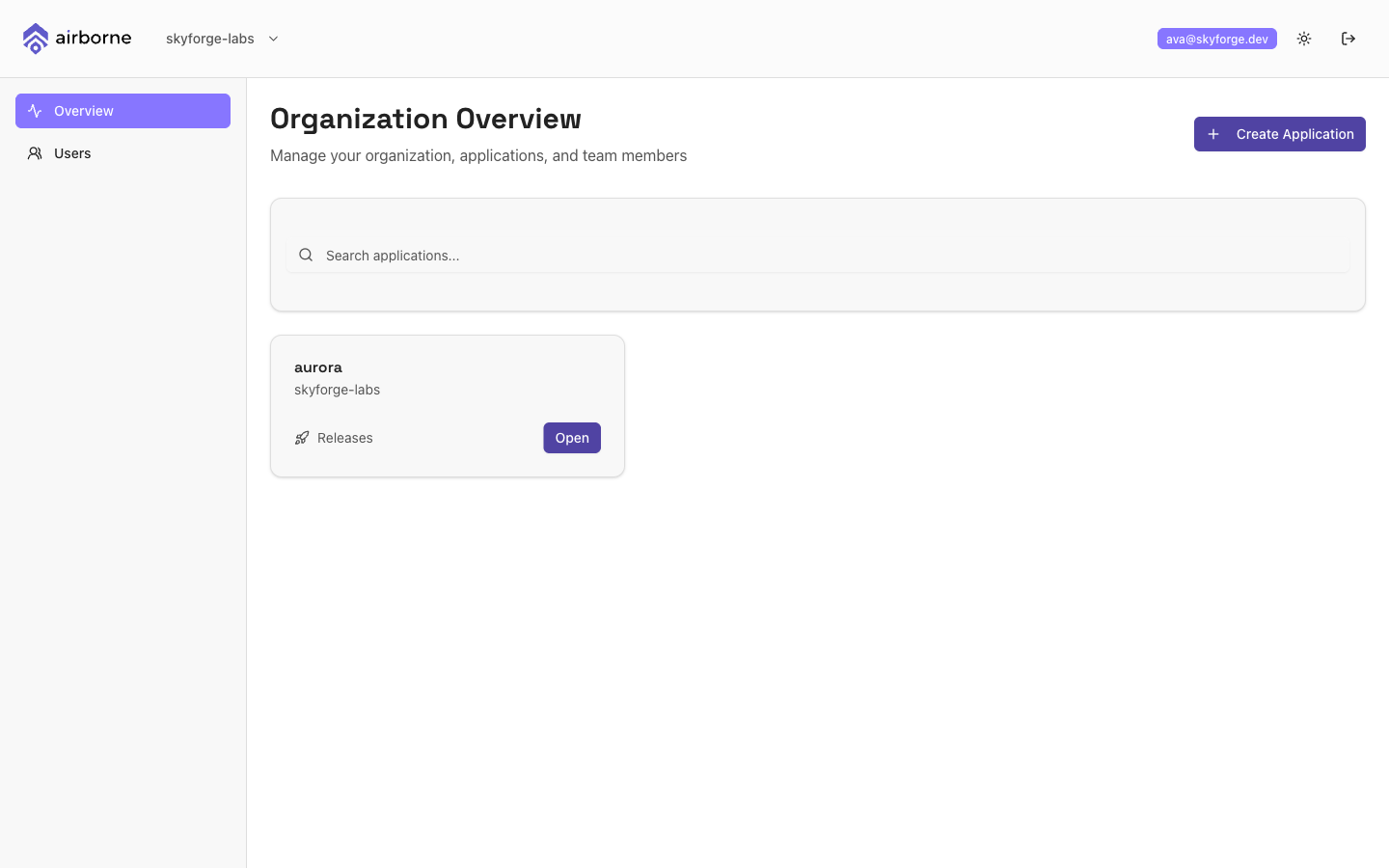
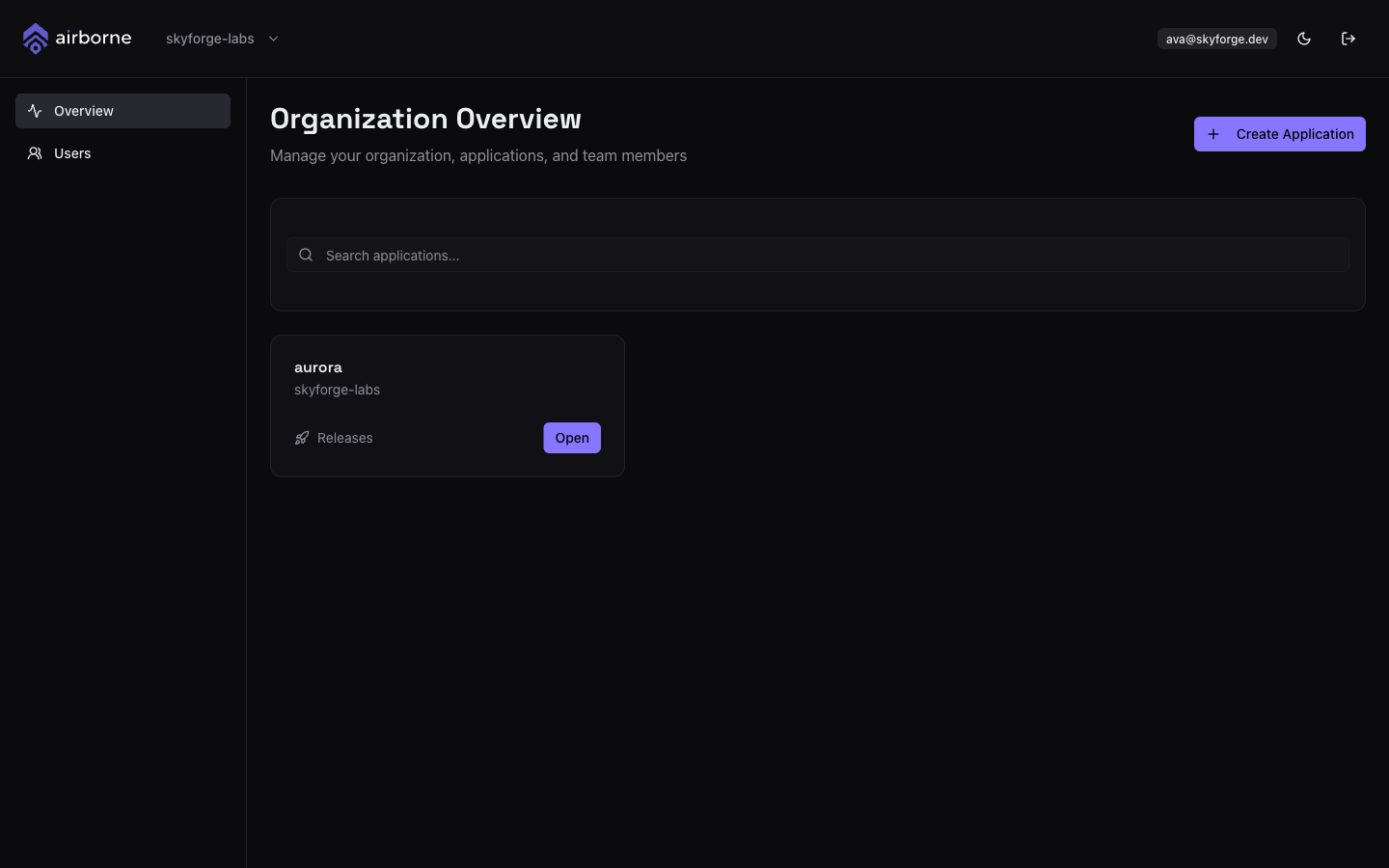
The overview is the home page for an organisation. It is titled Organization Overview and lets you:
- See every application in the organisation as a card. Use the Search applications… box to filter by name.
- Open an application with its Open button to jump into the application overview.
- Create a new application with
+ Create Application(see below).
At the organisation level the left sidebar shows just two items: Overview and Users. To manage who belongs to the organisation and what they can do, see Users & roles.
Creating an application from the organisation
Choose + Create Application on the overview. In the Create New Application dialog enter:
- Application name (required, up to 64 characters), and
- an optional Description.
Choose Create Application and the new app appears as a card. See Applications for what to do next.
Use a separate application per shippable target — for example one app per platform — since files, packages, releases, and tokens are all scoped to a single application.