Cohorts
A cohort segments your users so you can target a whole group with a single value in a release rather than spelling out version ranges every time. Cohorts are built on a cohort dimension (a dimension that depends on a standard dimension), and there are two ways to define the segments: Checkpoints (version comparisons) and Groups (explicit member lists).
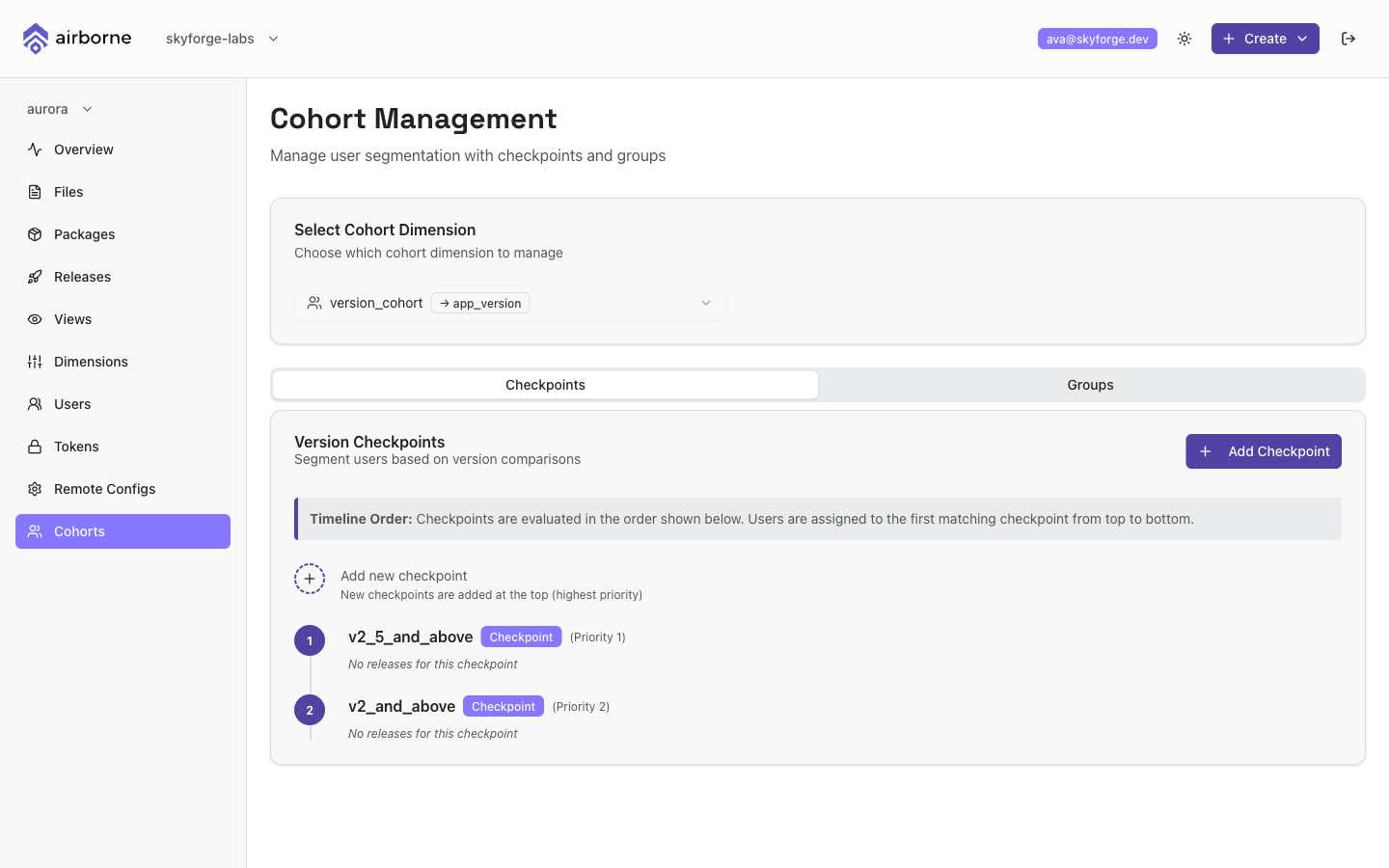
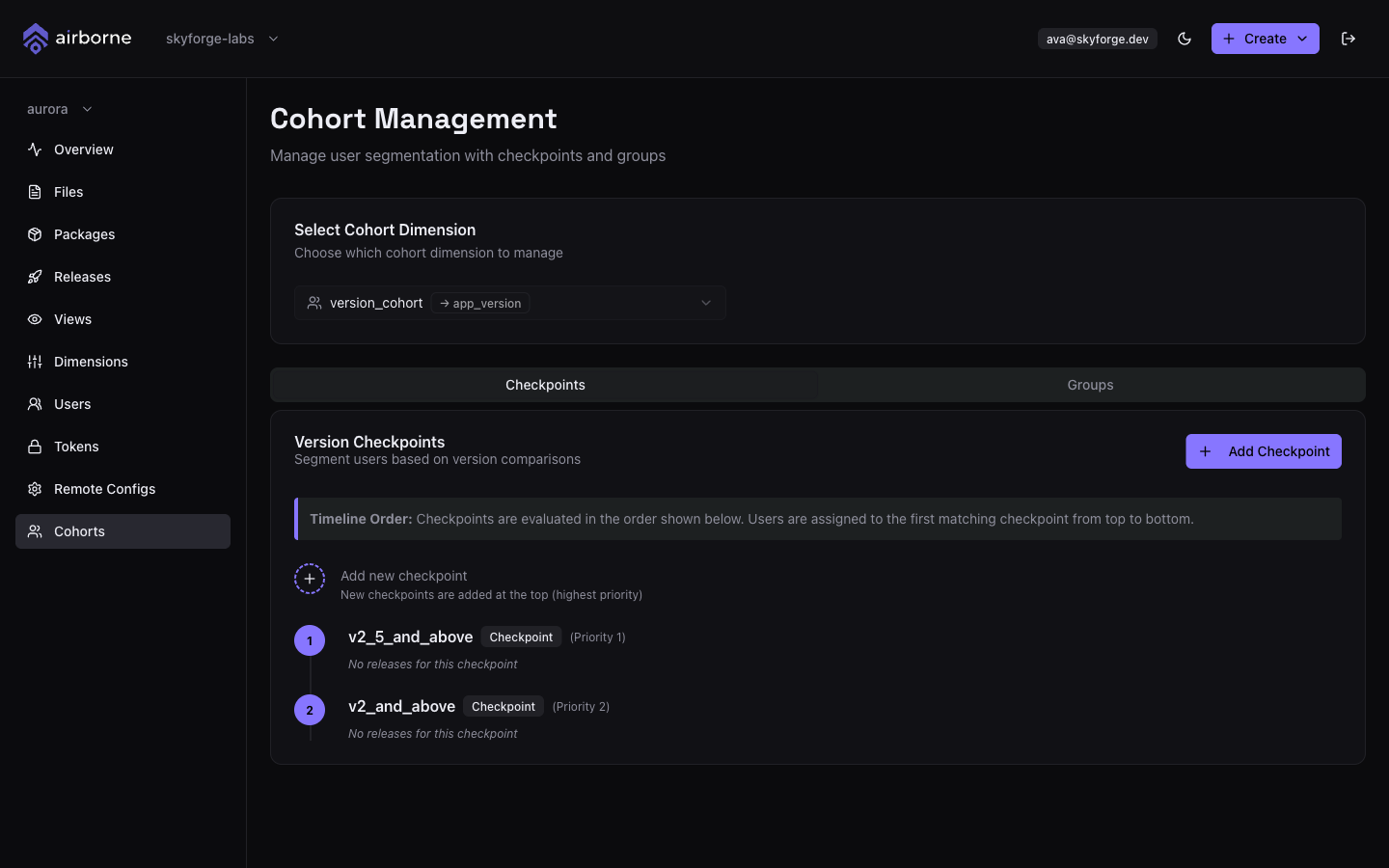
Selecting a cohort dimension
The Cohort Management page opens with a Select Cohort Dimension picker. Choose which cohort dimension you want to manage — the picker lists every cohort dimension and shows the standard dimension each one depends on (→ <dimension>).
If you have no cohort dimensions yet, the page prompts you to create one first; choose Go Back to Dimensions and create a cohort dimension on the Dimensions page.
The page then offers two tabs: Checkpoints and Groups.
Checkpoints
Checkpoints segment users by comparing the underlying dimension's value (for example app_version) against a threshold. They are ideal for version-based rollouts — "everyone on 2.1.0 or newer," for example.
Choose Add Checkpoint and fill in the dialog:
- Checkpoint Name — an identifier, e.g.
v2_1_users. - Value — the threshold, e.g.
2.1.0. - Value Type — Semantic Version (default) or String, controlling how the comparison is made.
- Include Value — whether the threshold itself is included:
- Include this value matches the value and everything above it (a
>=style comparison, e.g.semver_ge). - Exclude this value matches strictly above it (a
>style comparison, e.g.semver_gt).
- Include this value matches the value and everything above it (a
Choose Create Checkpoint to add it.
Evaluation order
Checkpoints are evaluated top to bottom, and the first match wins — each user is assigned to the first checkpoint they satisfy. The page shows this as a numbered timeline and notes: "Checkpoints are evaluated in the order shown below. Users are assigned to the first matching checkpoint from top to bottom." New checkpoints are added at the top (highest priority). Each checkpoint also lists any releases currently targeting it, with their status and traffic.
Order checkpoints from most specific or newest to most general. Because the first match wins, a broad checkpoint placed above a narrow one would swallow users before the narrow rule gets a chance.
Groups
Groups segment users by an explicit membership list — perfect for named cohorts like beta_testers or internal_staff where membership isn't tied to a version.
Choose Add Group and fill in the dialog:
- Group Name — an identifier, e.g.
beta_testers. - Members — add member IDs one at a time with Add (or press Enter). Each appears as a removable badge; add at least one.
Choose Create Group to save it. Groups also carry a priority: drag groups to reorder them (top groups are evaluated first) and choose Save Order to commit the change. Like checkpoints, each group lists the releases targeting it.
Using cohort values in a release
Once a cohort dimension has checkpoints and groups, its segments become selectable values. In the release wizard's Targeting step, add a rule on the cohort dimension and the value field becomes a dropdown of that cohort's checkpoints and groups — pick one to target exactly that segment of users.