Authentication & Onboarding
Before you can use the Airborne dashboard you sign in to your account. Depending on how your Airborne deployment is configured you can authenticate with a username and password, with a single-sign-on (OIDC) provider, or both. New deployments then walk you through creating your first organisation so you have somewhere to ship to.
Signing in
Open the dashboard and you land on the Sign in screen.
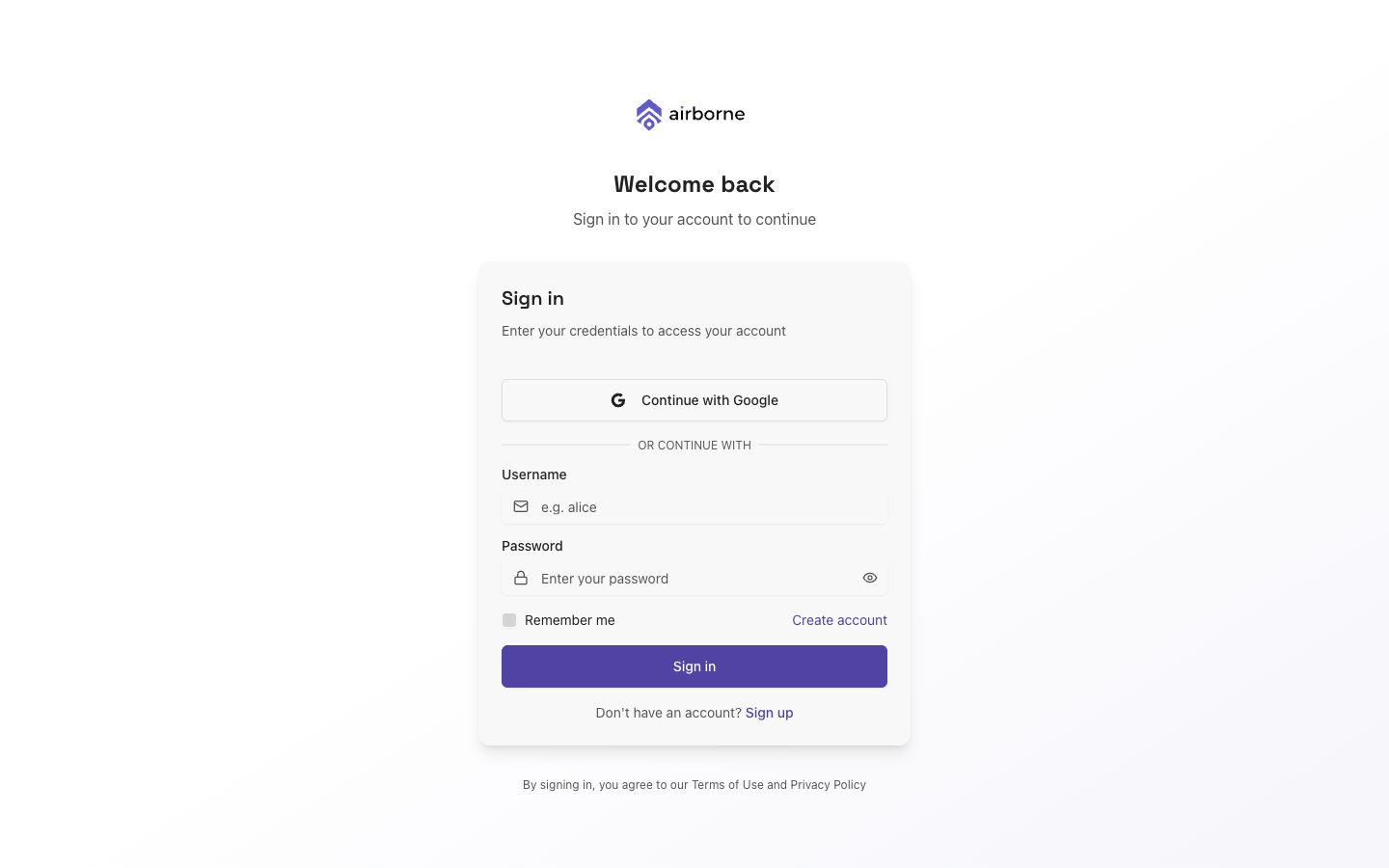
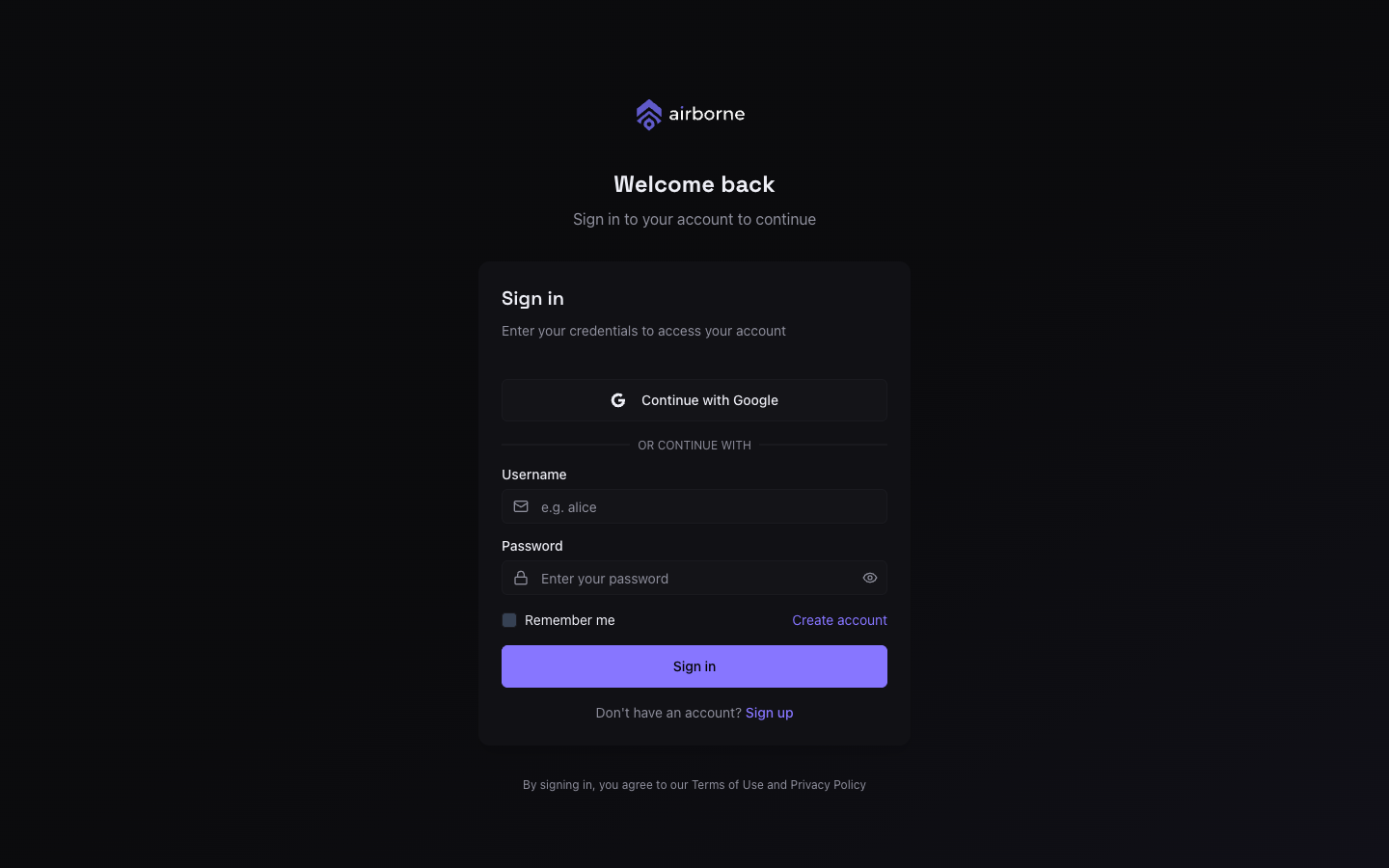
To sign in with a password, enter your Username and Password and choose Sign in. Tick Remember me to stay signed in on this device.
If your deployment enables single sign-on, you will also see one or more Continue with <provider> buttons (for example Continue with Google). Choosing one redirects you to your identity provider and back to the dashboard once you authenticate.
Which options appear is controlled by your Airborne server. Some deployments show only SSO, only password login, or both separated by an "Or continue with" divider.
Creating an account
If self-registration is enabled, the sign-in screen shows a Sign up link. The registration form collects your First name, Last name, Email, and a Password (entered twice to confirm), and asks you to accept the terms.
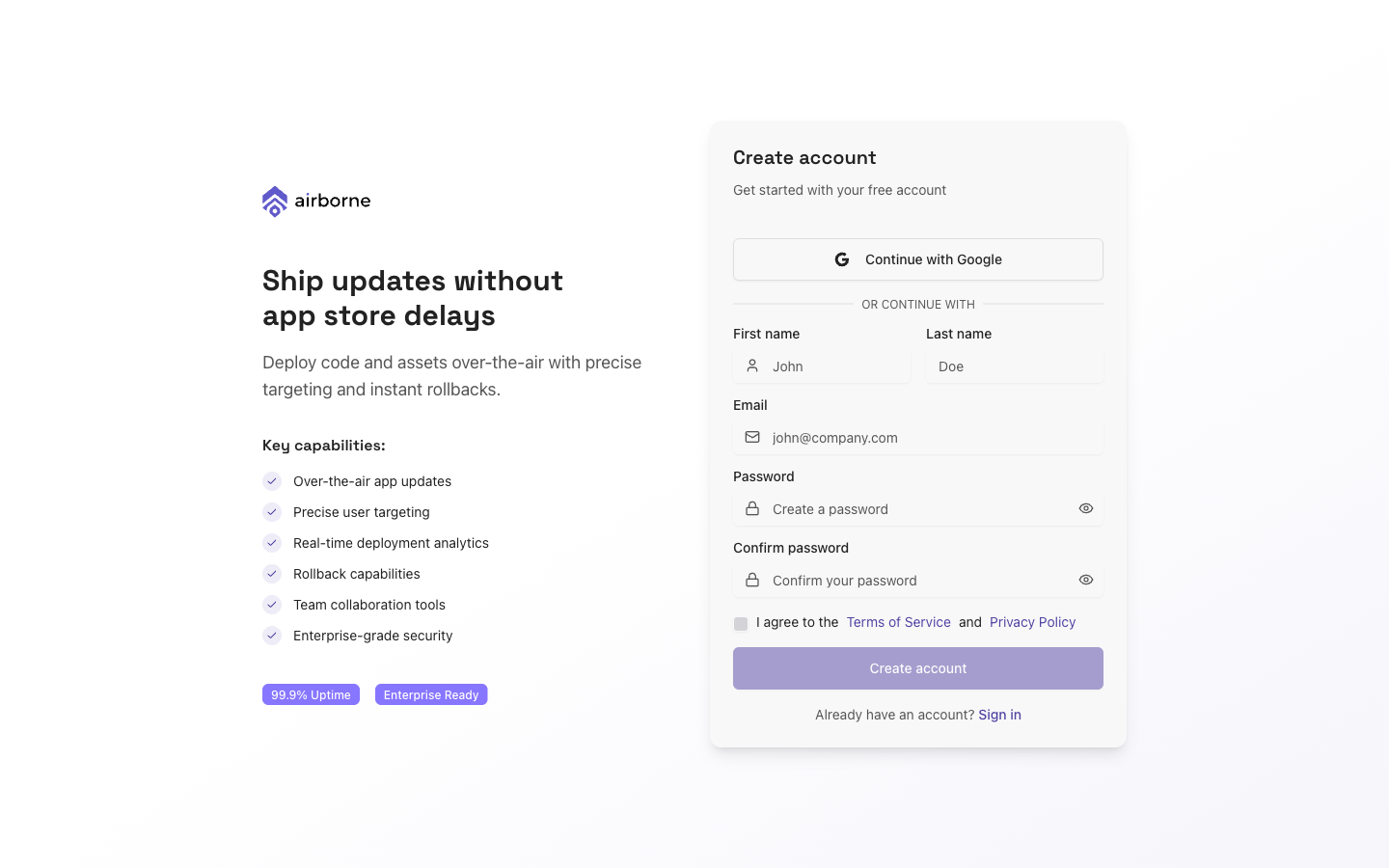
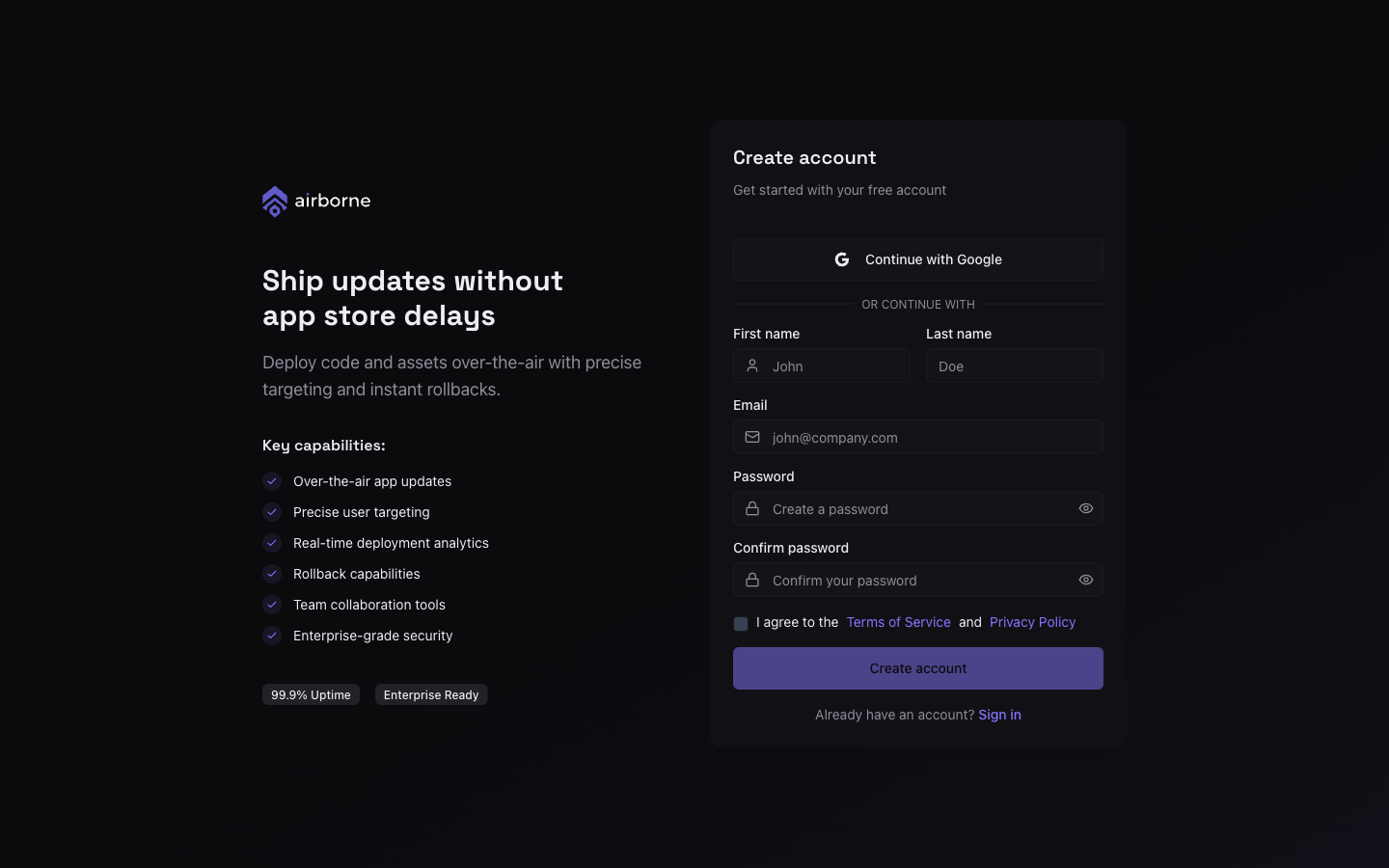
Choose Create account to finish. If registration is not available on your deployment, ask an administrator to invite you — see Users & roles.
First-run onboarding: your first organisation
Everything in Airborne lives inside an organisation, so the first thing a brand-new account does is create one. When you have no organisations yet, the dashboard shows a Create your first Organisation card.
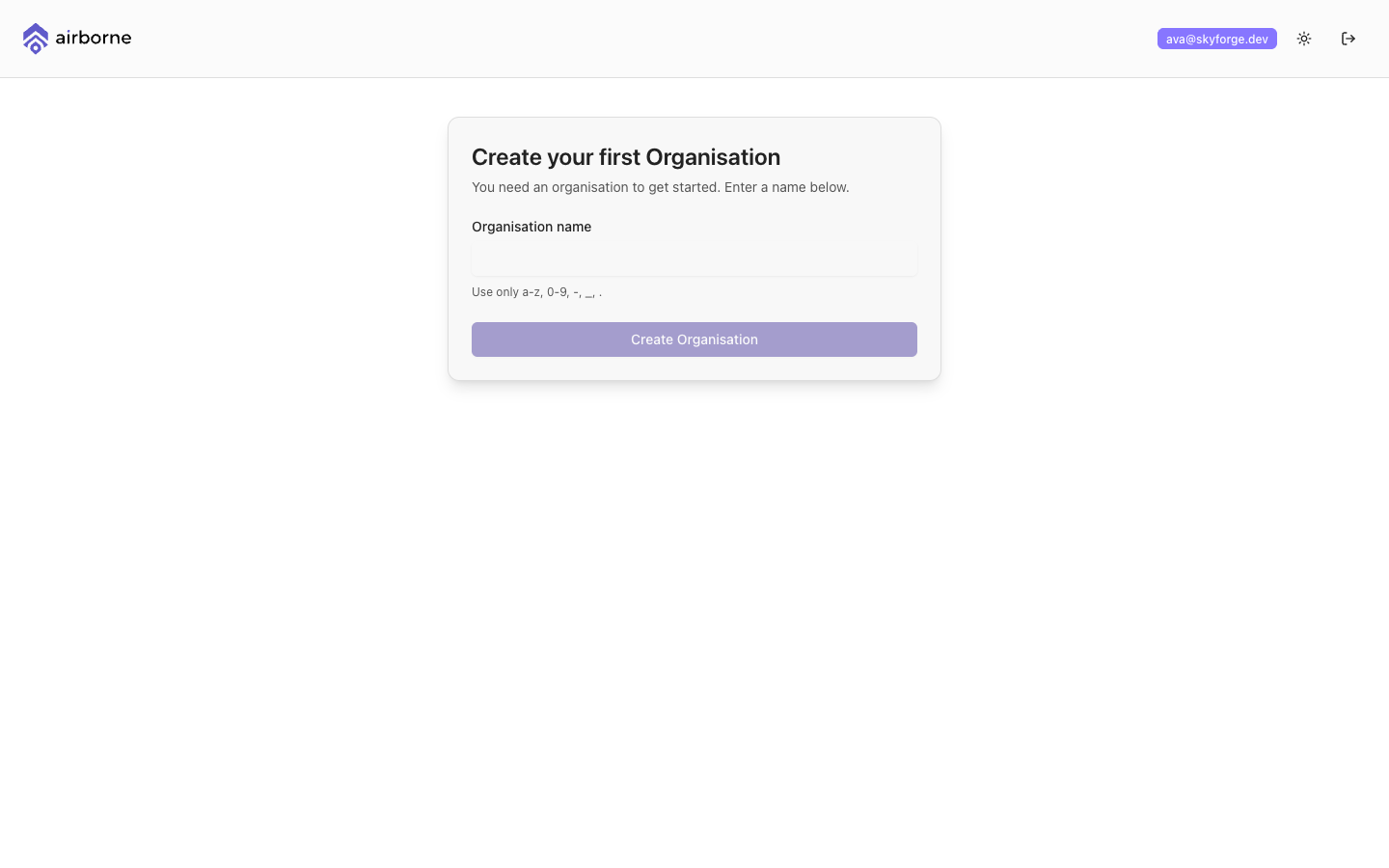
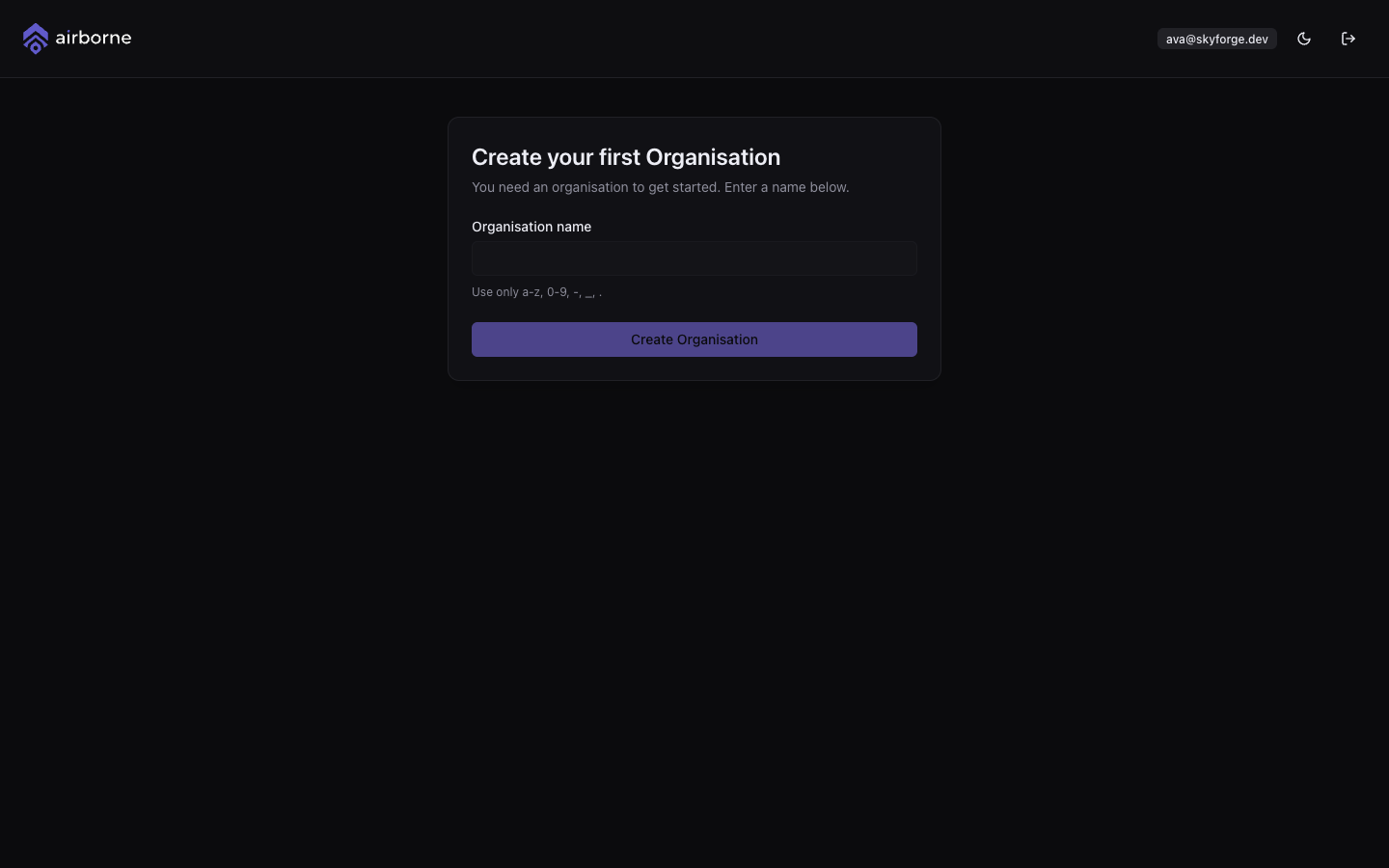
Enter an Organisation name (up to 64 characters) and choose Create Organisation. You are taken straight into the new organisation, where you can create your first application.
Some deployments restrict who can create organisations. If creation is disabled for your account, the card becomes Request your first Organisation instead — fill in the requested details and an administrator will provision one for you.
Where to go next
- Create an application inside your new organisation.
- Generate a personal access token to authenticate the CLIs.
- Follow the Create & target a release guide to ship your first update.